Elementor – Global Settings
Steps
-
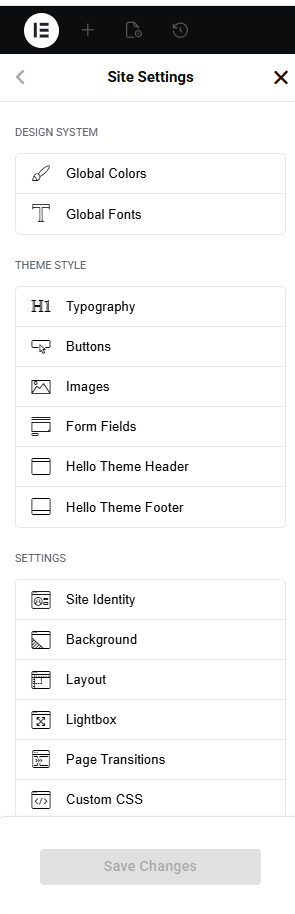
Go to Elementor → Settings
-
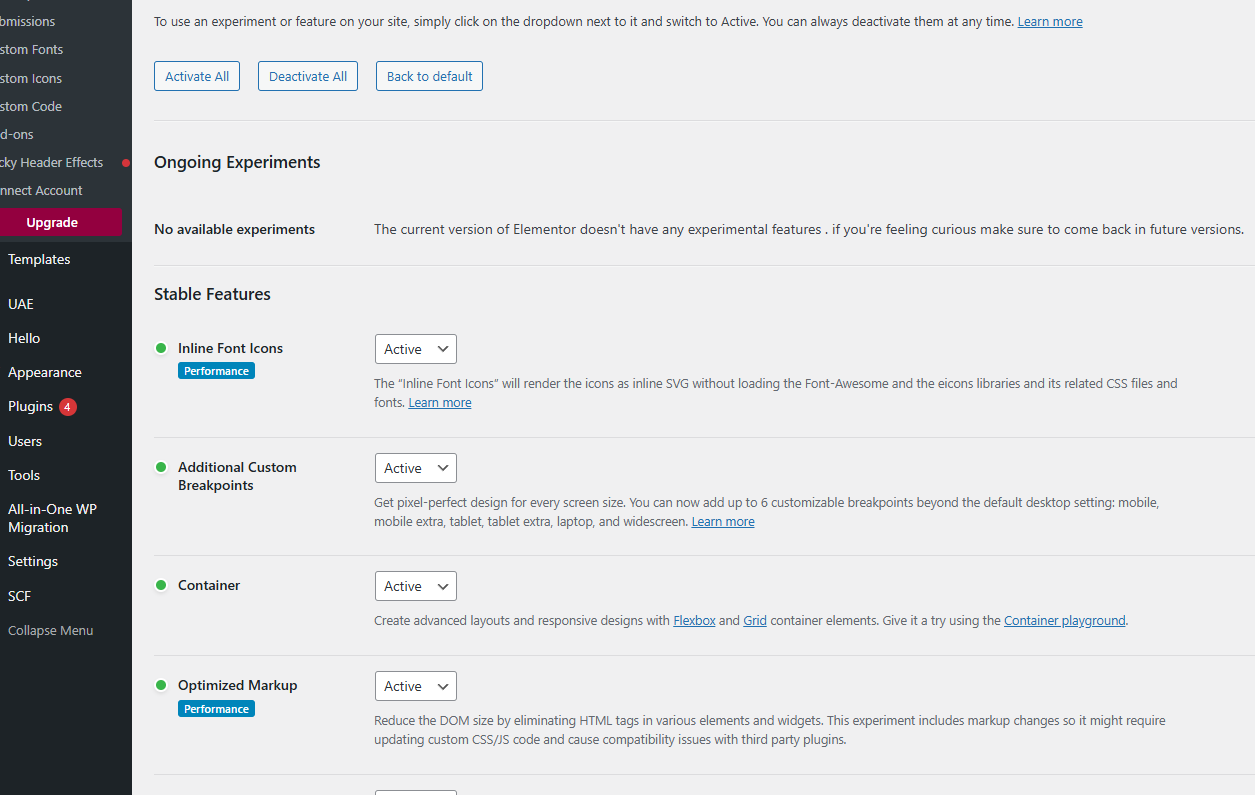
Configure General, Advanced, and Features tabs
-
Save changes
Description
Global settings control Elementor’s default behavior, layouts, and advanced features across the site.
Elementor – Header & Footer (Plugin Used)
Steps
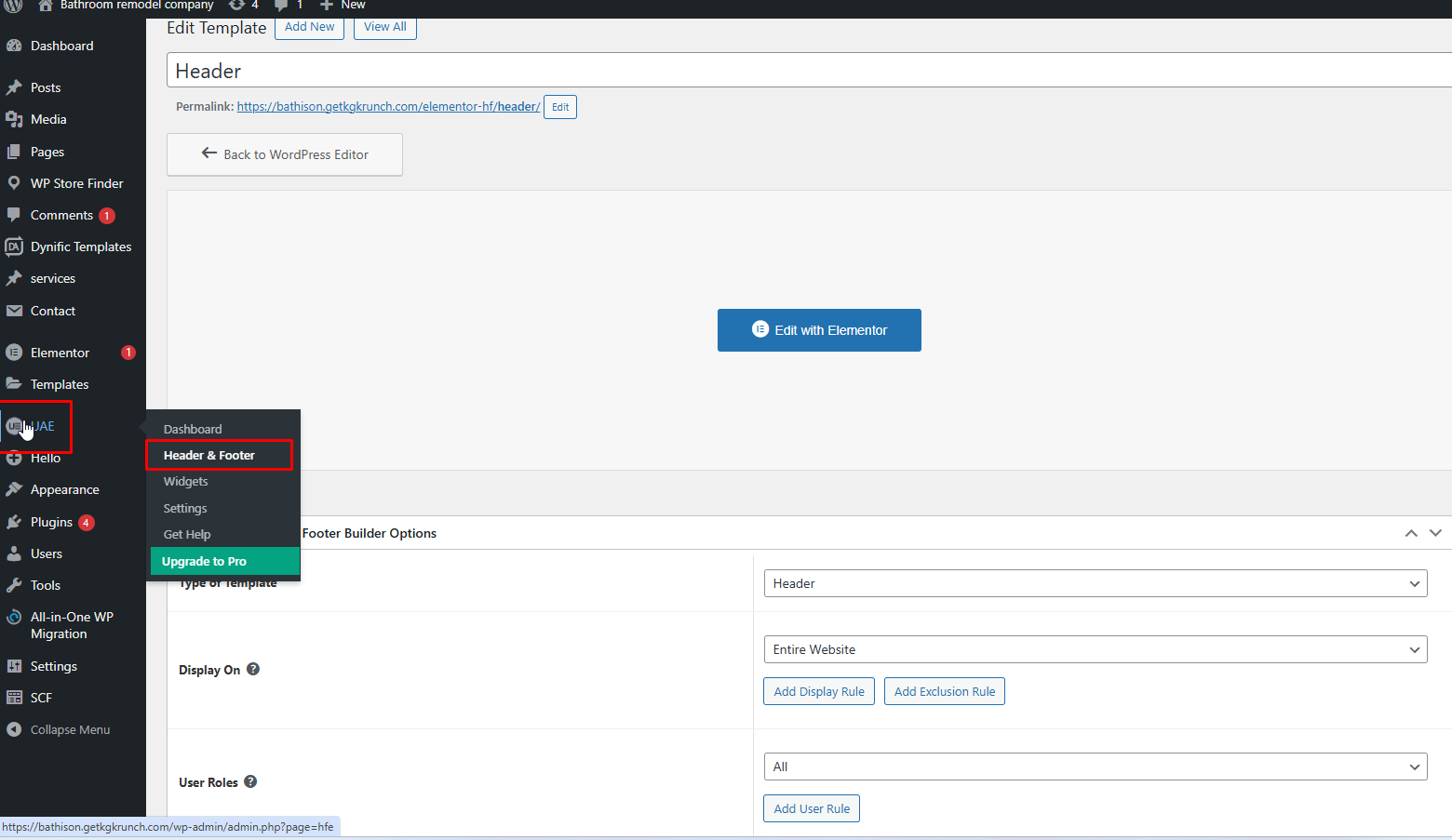
Install Ultimate Addons for Elementor Lite plugin
Go to UAE→ Header Footer Builder
Create header/footer and assign display conditions
This plugin allows creating custom headers and footers using Elementor without editing theme files.
Elementor – Version Control
Steps-
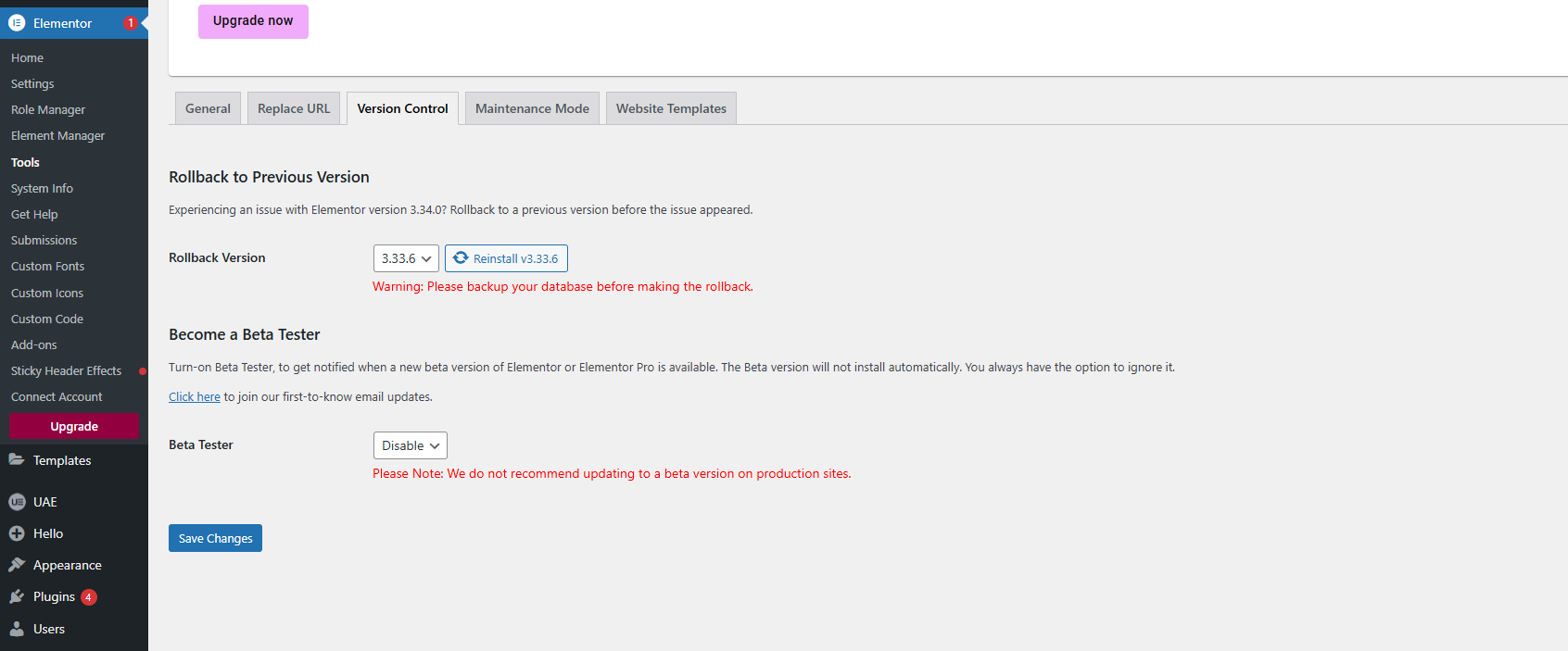
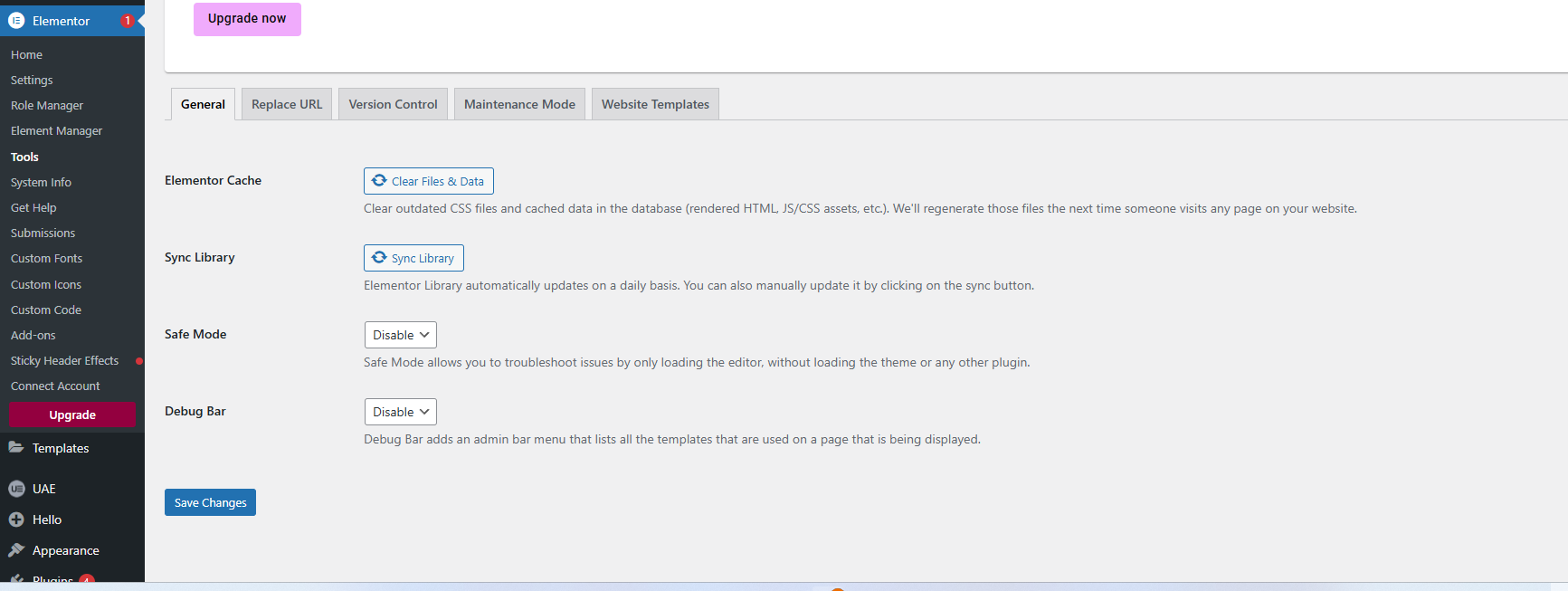
Go to Elementor → Tools → Version Control
-
Select required Elementor version
-
Rollback or update safely
Description
Version control helps manage Elementor updates and rollback to a stable version if issues occur.
Elementor – Cache Clear & Sync Library
Steps
-
Go to Elementor → Tools
-
Click Regenerate Files & Data
-
Click Sync Library
Description
Clearing cache and syncing the library fixes layout issues and ensures templates load correctly.
Elementor – How to Load Fonts
Steps
-
Go to Elementor → Settings → Advanced
-
Enable Load Icons Inline (if required)
-
Save changes
Description
Font loading settings control how fonts and icons are rendered to improve performance and compatibility.
Elementor – Google Fonts
Steps
-
Go to Elementor → Settings → Advanced
-
Enable or disable Google Fonts
-
Save changes
Description
This setting allows you to use or disable Google Fonts for performance, GDPR, or custom font usage.
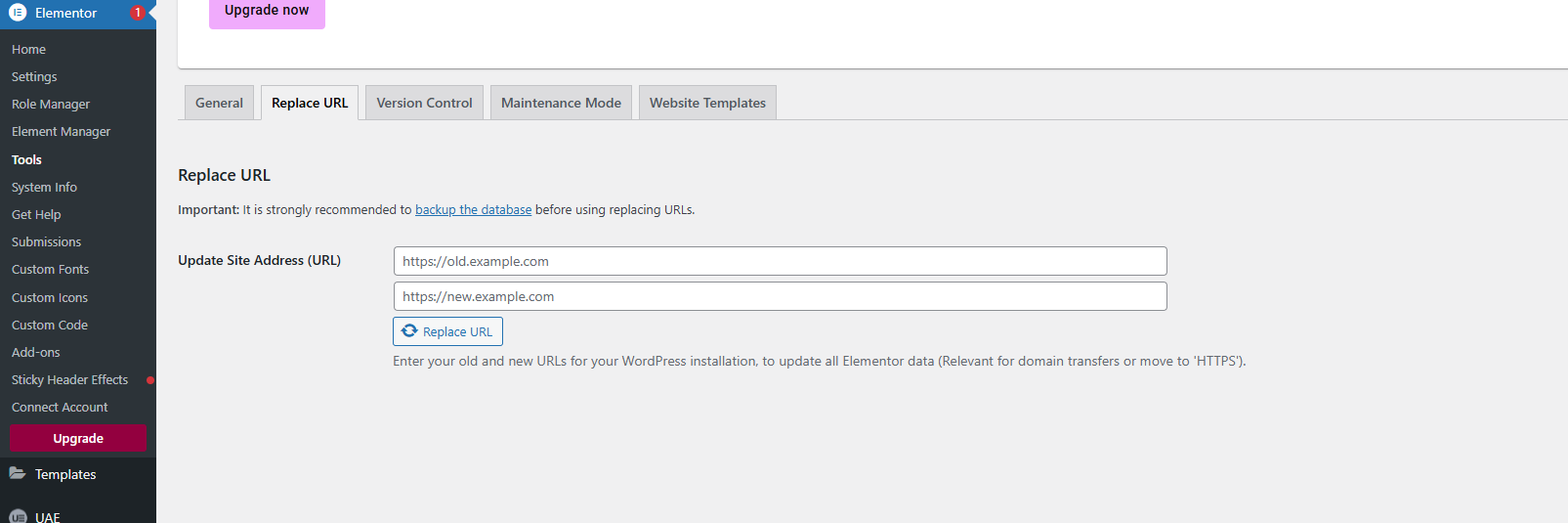
Elementor – Replace URL
Steps
-
Go to Elementor → Tools
-
Click Replace URL
-
Enter old URL and new URL → Replace
Description
Replace URL updates all Elementor links and media paths after site migration or domain change.